How to Use the StockTracker Android Companion as a Read-Only Portfolio View
Keep the Windows desktop app as the source of your portfolio while checking totals and positions from an Android phone.
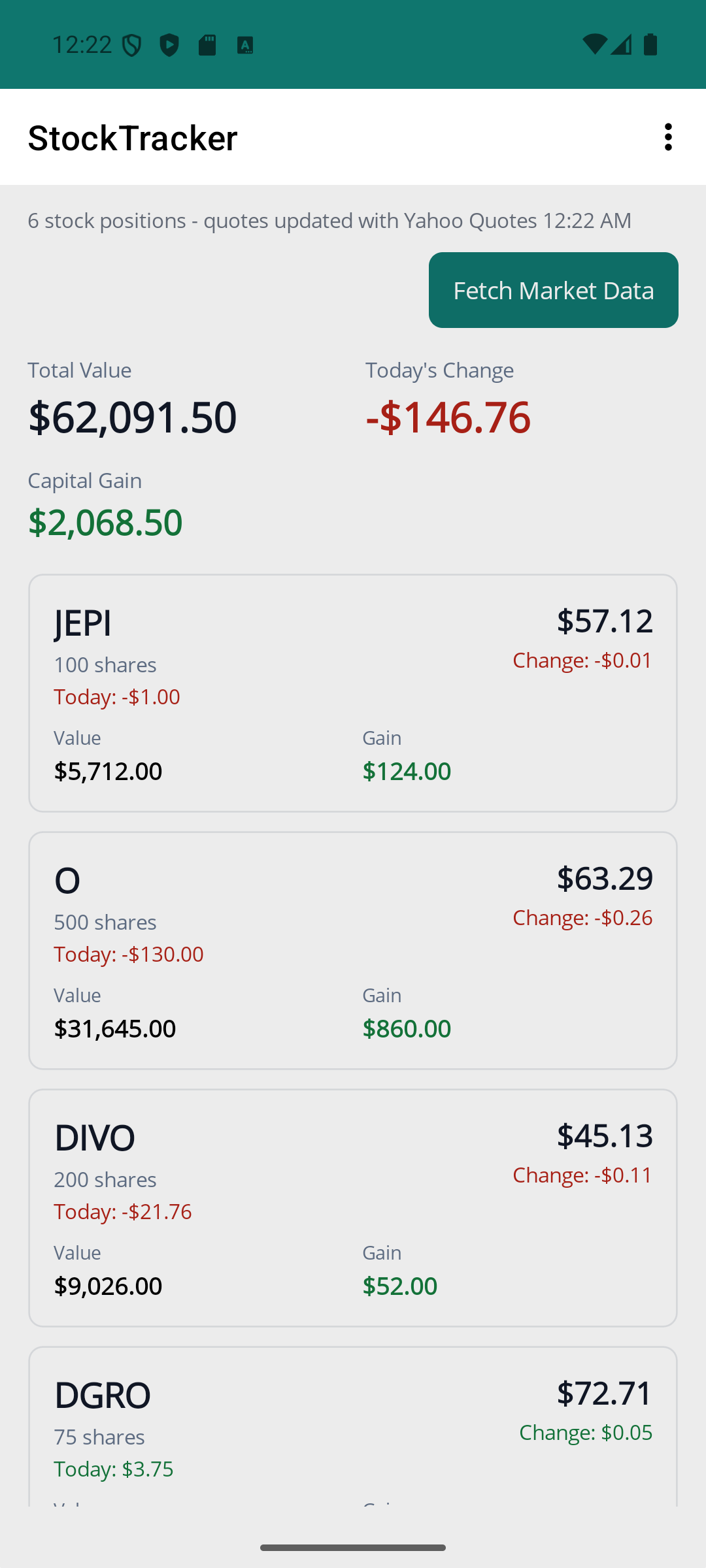
The StockTracker Android companion is designed for viewing, not editing. It imports a read-only copy of the Windows portfolio over your local network so you can check portfolio totals, quote status, and position cards from your phone.
The companion is included with StockTracker without a separate license. It requires Android 16 or later, API level 36 or higher.
Install the companion app
On Windows, open Help > About and select Get Android Companion App. Scan the QR code with your Android phone to open the companion-app location.
The app is intended to be installed directly rather than treated as a separate paid product. Follow Android's prompts for installing an app from the provided location, if they appear.
Import a portfolio from Windows
- Open the portfolio you want to share in StockTracker on Windows.
- Select File > Share Portfolio to Phone.
- On Android, select Import Portfolio.
- Scan the QR code, or paste the pairing payload if scanning is not convenient.
- Close the Windows sharing window when the import is complete.
The Windows computer and Android phone should be on the same local network. The sharing window is intended to be open only while importing; it is not a permanent online portfolio service.
What the phone view can show
The companion is useful for checking the portfolio away from the desktop. It can show portfolio totals, position cards, and quote refresh status. It supports Yahoo Quotes and Alpaca Markets for stock quotes.
Because the phone receives a read-only copy, changes made later on Windows do not automatically become edits from the phone. When you need a current view, share an updated portfolio again.
What remains Windows-only
Use the Windows application as the main place to add and edit positions, import brokerage or spreadsheet files, review dividend details, configure quote providers, and manage the portfolio file. The Android companion is a convenient view of that data, not a replacement for the desktop workflow.
Keep the local-network boundary in mind. The companion is meant for sharing within your own network, and the portfolio copy should be treated with the same care as the desktop file.
If the import does not work
- Confirm both devices are connected to the same network.
- Leave the Windows sharing window open during the import.
- Try each listed share URL if you are entering the details manually.
- Share the portfolio again after making changes on Windows.
Use the desktop for planning and the phone for checking
StockTracker combines local Windows portfolio management with an included read-only Android companion for quick access to your holdings.
Try StockTracker free Buy the full versionThe Windows installer is not currently code-signed. Read the installation guidance before opening it.